Asset Management
Overview
Assets are physical machines managed by Colony. They progress through a lifecycle from discovery to provisioning, and can be reused by wiping and reprovisioning as needed.
Asset Lifecycle
Assets move through these statuses:
         Initial Discovery
                ↓
         [discovering]
                ↓
          [available] ←──────┐
                ↓            │
        [provisioning]       │
                ↓            │
         [provisioned]       │
                ↓            │
        [deprovisioning] ────┘
Status Descriptions
| Status | Description | Duration | Actions Available |
|---|---|---|---|
| discovering | Initial hardware detection and inventory | 3-8 min | Wait |
| available | Ready for provisioning | Stable | Provision OS, Create cluster |
| provisioning | OS installation in progress | 7-40 min | Monitor, View logs |
| provisioned | OS installed, ready for use | Stable | SSH access, Create K3s cluster |
| deprovisioning | Disk wipe in progress | 5-10 min | Wait |
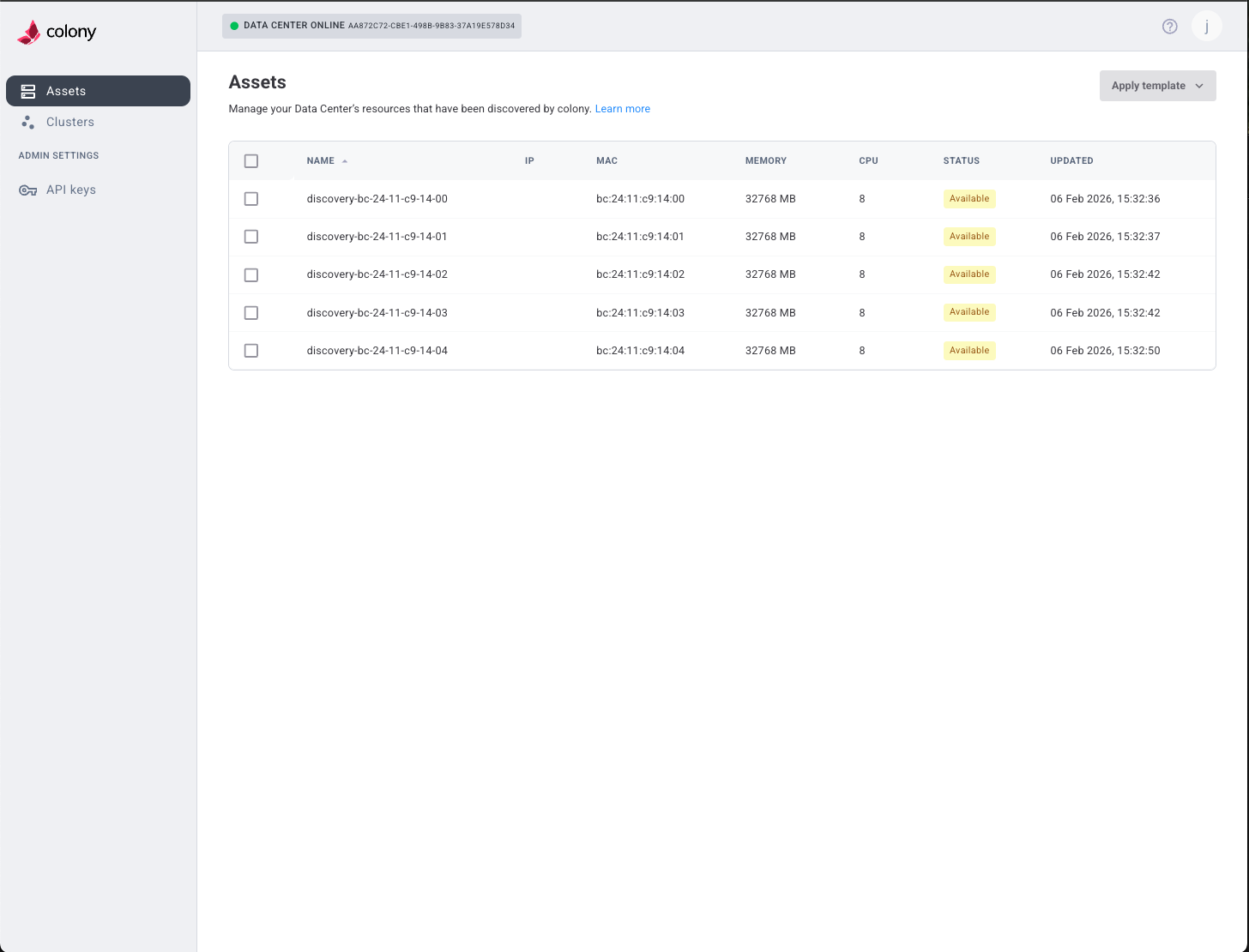
Asset Operations
Discovery
Register new hardware with IPMI credentials:
Provisioning
Install operating systems on assets:
Ubuntu 22.04:
- Use for K3s clusters or standalone servers
- Provides SSH access
- Provision Ubuntu Guide →
Talos Linux:
- Used automatically by Civo Stack and Talos Linux clusters
- No manual provisioning needed
- Civo Stack → | Talos Linux →
Deprovisioning
Wipe assets to return them to "available" status:
- Navigate to Assets in Colony UI
- Select provisioned asset
- Click Wipe Disk
- Confirm action
- Wait for completion (5-10 minutes)
Disk wipe is destructive and irreversible. All data will be permanently deleted.
Asset Information
Hardware Inventory
Colony automatically detects:
- CPUs: Model, count, cores per CPU
- Memory: Total RAM, speed, configuration
- Storage: Disks, capacity, type (SSD, HDD, NVMe)
- Network: NICs, MAC addresses, speeds
- BMC/IPMI: Management interface details
View in Colony UI under Assets → Select asset → Hardware Details.
Network Configuration
Assets can be configured with:
- Static IP: Assigned during cluster creation
- DHCP: Temporary IP during discovery
- VLANs: Tagged networks (advanced)
- Bonding: Link aggregation (advanced)
See Networking Guide for advanced configuration.
Use Cases
Kubernetes Clusters
Create production clusters on bare metal:
- Civo Stack: Enterprise private cloud (create →)
- K3s: Lightweight Kubernetes on Ubuntu (create →)
- Talos Linux: Standard Kubernetes (create →)
Standalone Servers
Provision Ubuntu for non-cluster workloads:
- Application servers (Node.js, Python, Go apps)
- Database servers (PostgreSQL, MySQL, MongoDB)
- Development machines
- Jump boxes and bastions
- CI/CD runners
Testing and Development
Use assets for experimentation:
- Provision → Test → Wipe → Repeat
- Try different cluster configurations
- Benchmark hardware performance
- Validate deployment workflows
Asset Requirements by Cluster Type
| Cluster Type | Min Assets | OS Required | Pre-Provision | Credentials |
|---|---|---|---|---|
| Civo Stack | 2 | Talos (auto) | No | Yes (tokens) |
| K3s | 2 | Ubuntu 22.04 | Yes | No (SSH only) |
| Talos Linux | 2 | Talos (auto) | No | No |
Asset Tagging and Organization
Organize assets with metadata:
- Location: Datacenter, rack, U position
- Purpose: Compute, storage, GPU, etc.
- Generation: Hardware version or age
- Owner: Team or project
- Maintenance: Next service date
This helps with:
- Resource allocation
- Capacity planning
- Troubleshooting
- Compliance tracking
Monitoring Assets
Via Colony UI
Real-time status of all assets:
- Navigate to Assets
- View list with status indicators
- Click asset for detailed information
- Monitor provisioning progress
Via kubectl
From management cluster:
# List all hardware
kubectl get hardware -A

# Watch for status changes
kubectl get hardware -A -w

# Get detailed info
kubectl describe hardware -n <namespace> <hardware-name>
Troubleshooting
Asset Won't Discover
Symptoms: Asset doesn't appear after add-ipmi.
Solutions:
- Verify IPMI connectivity:
ping <ipmi-ip> - Check credentials in IPMI web interface
- Ensure PXE boot is enabled
- Review colony-agent logs:
kubectl logs -n colony -l app=colony-agent
Asset Stuck in Status
Symptoms: Asset remains in same status for extended period.
Solutions:
- discovering: Check PXE boot, DHCP, TFTP server
- provisioning: Review Tinkerbell workflow logs
- deprovisioning: May be slow for large disks, wait longer or power cycle
Can't Wipe Asset
Symptoms: Wipe operation fails or doesn't start.
Solutions:
- Ensure asset is in "provisioned" status
- Check IPMI connectivity
- Verify management cluster can reach asset
- Try power cycling asset first
What's Next
Choose your path:
- Discover Assets → - Register hardware
- Provision Ubuntu → - Install Ubuntu 22.04
- Create Clusters → - Deploy Kubernetes
- Networking Configuration → - Advanced network setup
Need help? Join our Slack community for support!